From 15 Minutes to Seconds: Redesigning eSignature Template Setup Around AI
Every document a bank or credit union sends for signature starts as a template an administrator builds by hand. Institutions maintain hundreds of them, and forms change, so the same work comes back every year as maintenance.
Kinective runs signing for 4,300+ financial institutions and 15,000+ users. Before this project, a single template took 15 minutes at minimum to set up, and the tool that built it could not be learned without a training session.

Key figures
50%
Estimated reduction for average setup time
Powered
With AIFewer
Errors
Overview
Project overview
Kinective Sign is a tool for banks and credit unions to get member documents signed. Staff upload or generate a form, the software lays out where people need to sign and fill in fields, and then sends it out so customers can sign from any device. The system checks that everything required is completed, stores the finished documents in the bank's existing imaging/archiving systems, and gives operations teams a view of what's out for signature and where things are stuck.
SignPlus adds more automation around who gets what, in what order, and how it moves through back-office teams, plus more detailed tracking for audit and compliance. SignPlus offers a feature called Template Manager that enables admins to maintain and create document templates, allowing institutions to scale their document workflows and helping members to get through transactions faster and easier.
Problem
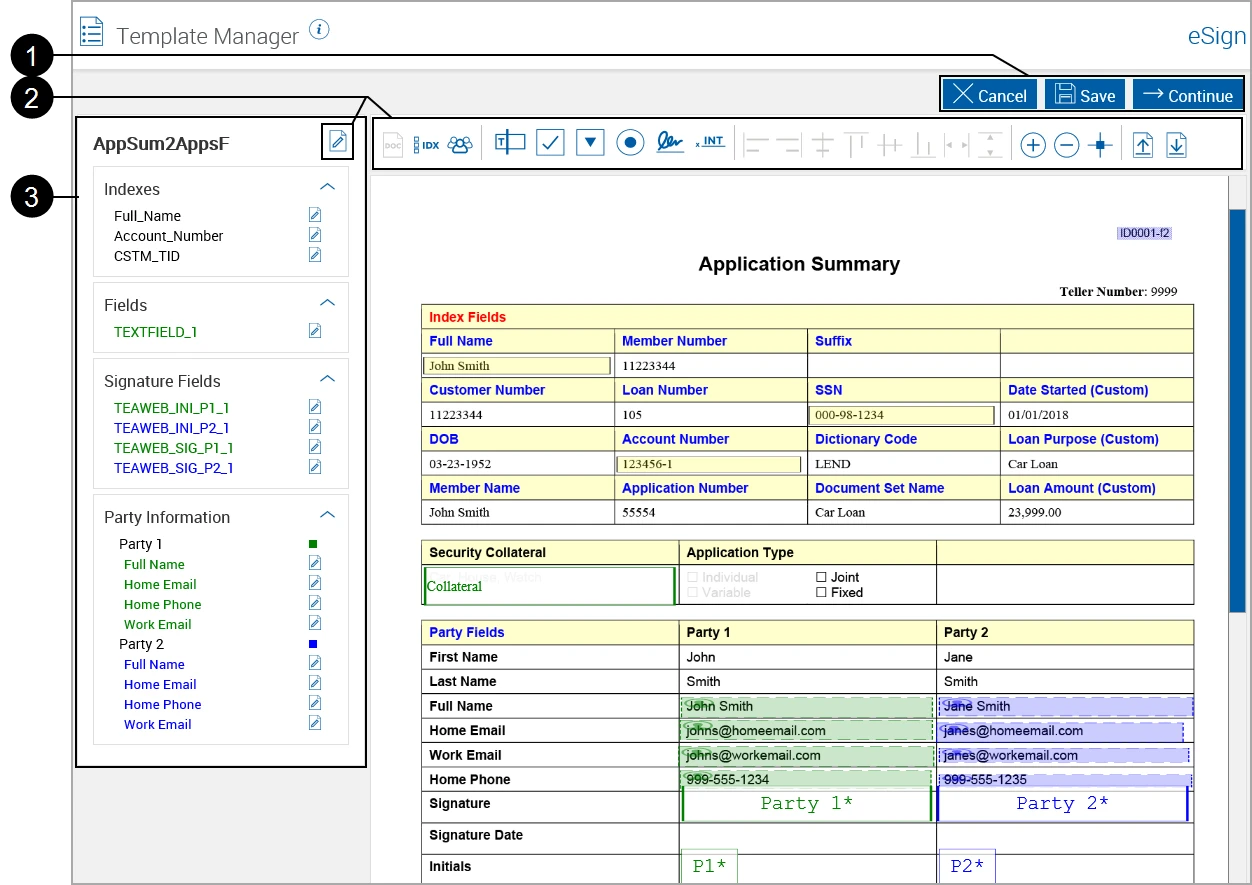
The Template Manager is powerful and feature-rich, but it was built on legacy software and lacked a user-centric UI. The end-to-end process was needlessly complex, expected users to manually provide metadata for the imaging system, and featured a dated design.
- No guidance: The interface offered no intuitive guidance and relied heavily on icons and glyphs to communicate complex topics.
- 15+ minutes per document: Even advanced users spent at least 15 minutes setting up each template.
- Training as a prerequisite: New users needed extensive hands-on training and thorough documentation, and implementations for the template setup phase ran 2 to 4 weeks.
Goals
Business goals
- Cut template setup and maintenance time by at least 50% by putting AI field placement inside the admin's own workflow.
- Reduce the dependency on implementation training so a new admin can build a template without a session.
- Bring the Template Manager up to the rest of the Kinective experience so it reads as one product.
Constraints
Scope and constraints
Template Manager was the first piece of a broader redesign and modernization of Kinective Sign, one of Kinective's highest-usage products by user count. Templates are the foundation of every signing transaction in Kinective Sign. Each one defines the fields, signature locations, party roles, and index values that let documents flow from an institution's business systems into a prepared eSignature transaction and on to archiving. A broken or outdated template breaks every transaction built on it.
Technical
Templates had to stay compatible with existing documents already in use across several institutions, so the new workflow couldn't change the underlying template structure or remove existing features.
Org
The admin experience, the AI-powered document setup, and the signing experience were owned by different teams, and no one owned the end-to-end template lifecycle.
Time
Needed to launch alongside Automated Document Setup, since the two features depend on each other.
Regulatory
Signed documents must hold up legally, so index values and party roles had to be correct before publishing. That's why the design keeps a human review step before any template goes live.
Collaboration
Admins at financial institutions build and maintain their own templates, and Kinective's Implementation and Support teams train and assist them. I partnered with the Director of Product and Product Manager to define the scope and sequencing of the redesign, and worked with the development team to translate the guided workflow into build-ready requirements.
Process
Process and whiteboard
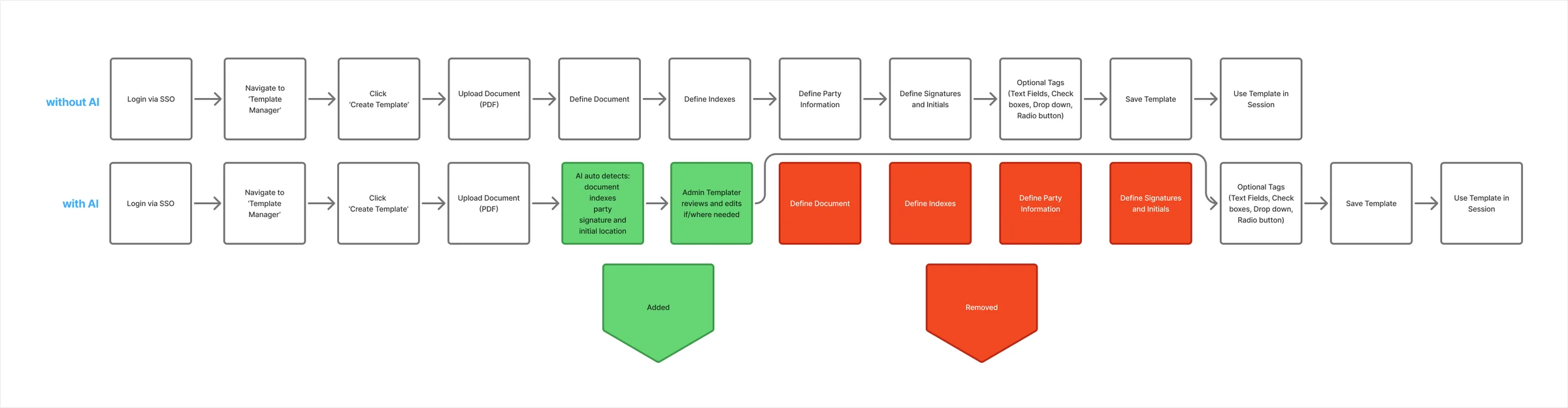
I mapped template setup end to end, with and without AI. Without it, admins defined the document, indexes, party information, and signatures by hand, one step at a time. With AI, those four steps become one: AI detects the fields and the admin reviews and edits where needed.
Assessment
Initial assessment
Working with the Product Manager, I reviewed the product marketing brief, the original requirements, and recordings of implementation staff training new institutions. Five themes stood out:
- No clear starting point
- The old interface exposed every tool at once. Implementation staff described it as an open canvas where new admins had no idea what to do first.
- No guided process
- Building or updating a template meant working across multiple surfaces and steps with no clear guidance on what came next. The tool's only cue was to grey out icons, and it expected admins to work out a required order from unlabeled icons that stayed clickable, an order that was not evident without external documentation. Implementation staff flagged this as the top pain point.
- Unclear field setup
- Nobody knew where to drag fields or when to define them. Trainers reported this as the single most common point of confusion during onboarding.
- Training as a dependency
- The UI was not learnable on its own, so institutions relied on onboarding sessions. With regular staff turnover, that knowledge kept walking out the door.
- Modernization gap
- Dated icons, colors, and layout no longer matched the rest of the Kinective experience.
Decisions
Key decisions
I made three decisions that shaped Template Manager, each designed for a different moment in the template lifecycle:
Decision 01
Guided, step-by-step workflow
Make new template setup self-explanatory with a guided, step-by-step workflow
Institutions initially learn template building during a two to four week implementation phase, but after that, they're on their own with Support and written guides. With banks and credit unions typically seeing around 20% annual staff turnover, the admin building templates a year later often isn't the one who was trained.
I made the call to structure Template Manager as a five-step guided workflow with descriptions and explanations instead of a single-page editor. The goal was to make the workflow teach itself, so any admin could build a correct template without relying on training they never received. That structure carried through to build and is now how Kinective describes the feature publicly.
Decision 02
Separate modes for creating and editing
Keep edits to existing templates fast with separate modes for creating and editing
Building a template and updating one are different jobs. A new template needs every step completed in order, but an update usually means changing one thing, like a field or a party.
I split creation and editing into two separate experiences built on the same content. New templates always use the guided flow, so nothing gets skipped. Existing templates open in a tabbed layout, so admins can go straight to the section they need without stepping through the whole process again.
Decision 03
AI autofill on the admin's terms
Speed up setup for anyone who wants it, safely, with AI autofill on the admin's terms
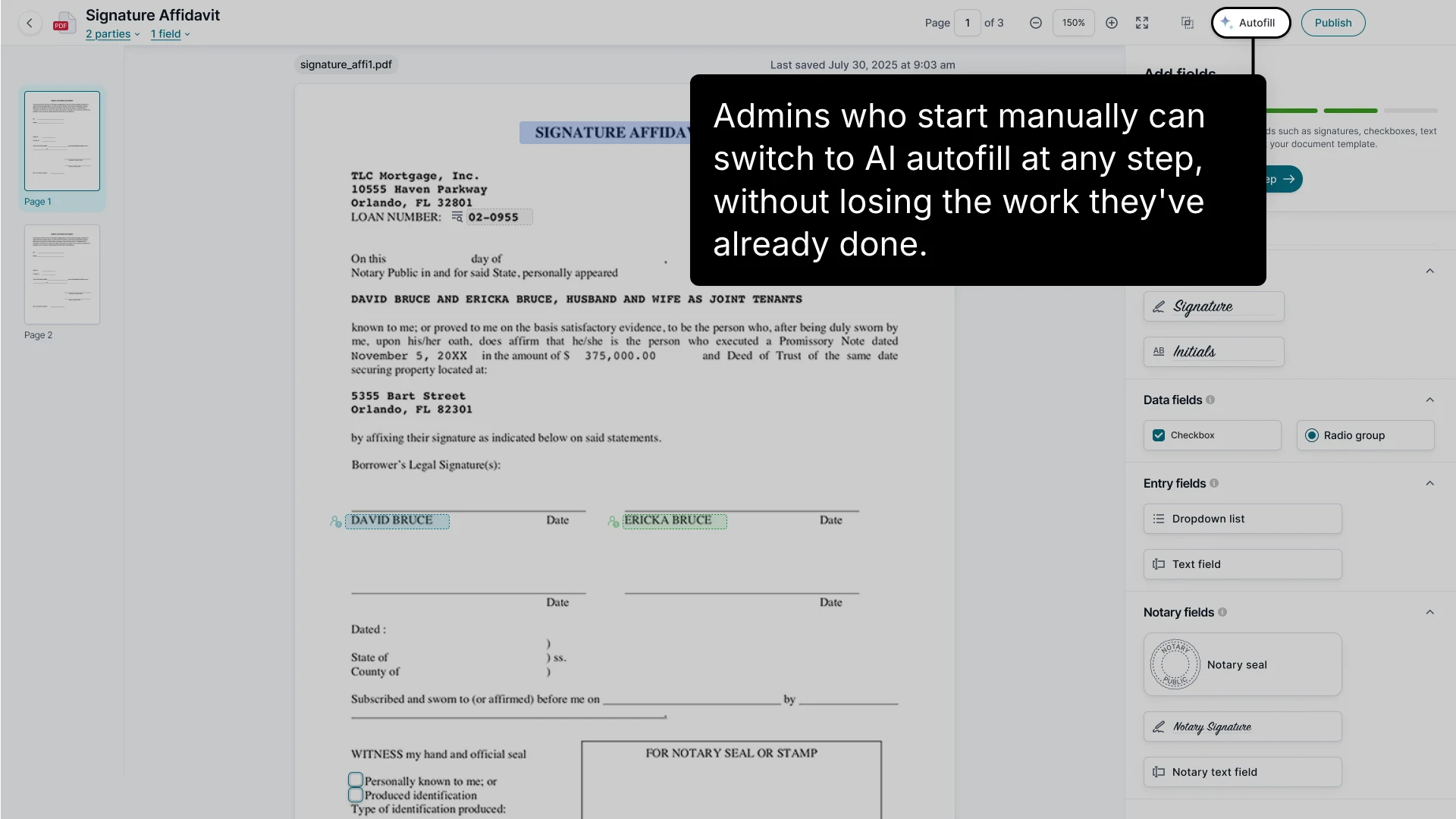
At the start of the flow, admins can choose AI autofill, which detects fields, signature locations, party roles, and index values from the uploaded PDF. Instead of placing each one by hand, admins start with a filled-in draft, then have the opportunity to review and correct it before anything is published. Admins who start manually can switch to autofill at any point.
The goal was to deliver AI's speed without taking away the admin's judgment: AI does the first draft, and a person always has the final say.
Solution
Template Manager takes admins from an uploaded PDF to a published, reusable template, with guidance for new templates, fast access for edits, and AI assistance when they want it.
Handoff
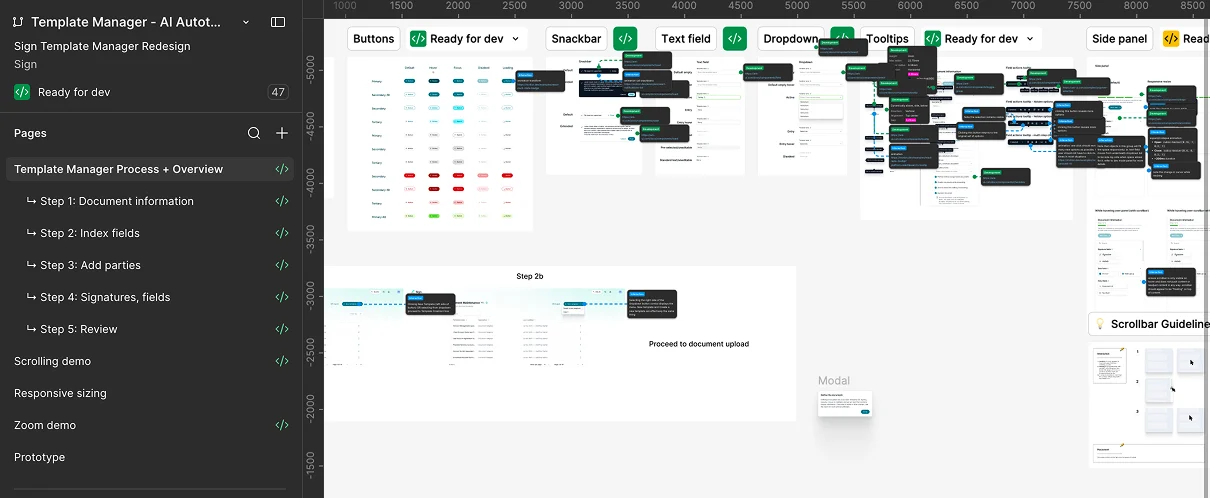
I organized the Figma handoff by step, with a page for each of the five steps and every section marked ready for dev. Every screen carried extensive annotations, and each component was laid out on its own with its states, so nothing had to be inferred from a mockup. It also included specs for scrolling, zoom, responsive sizing, and field interactions like selecting, aligning, and resizing, plus a working prototype.
Anatomy
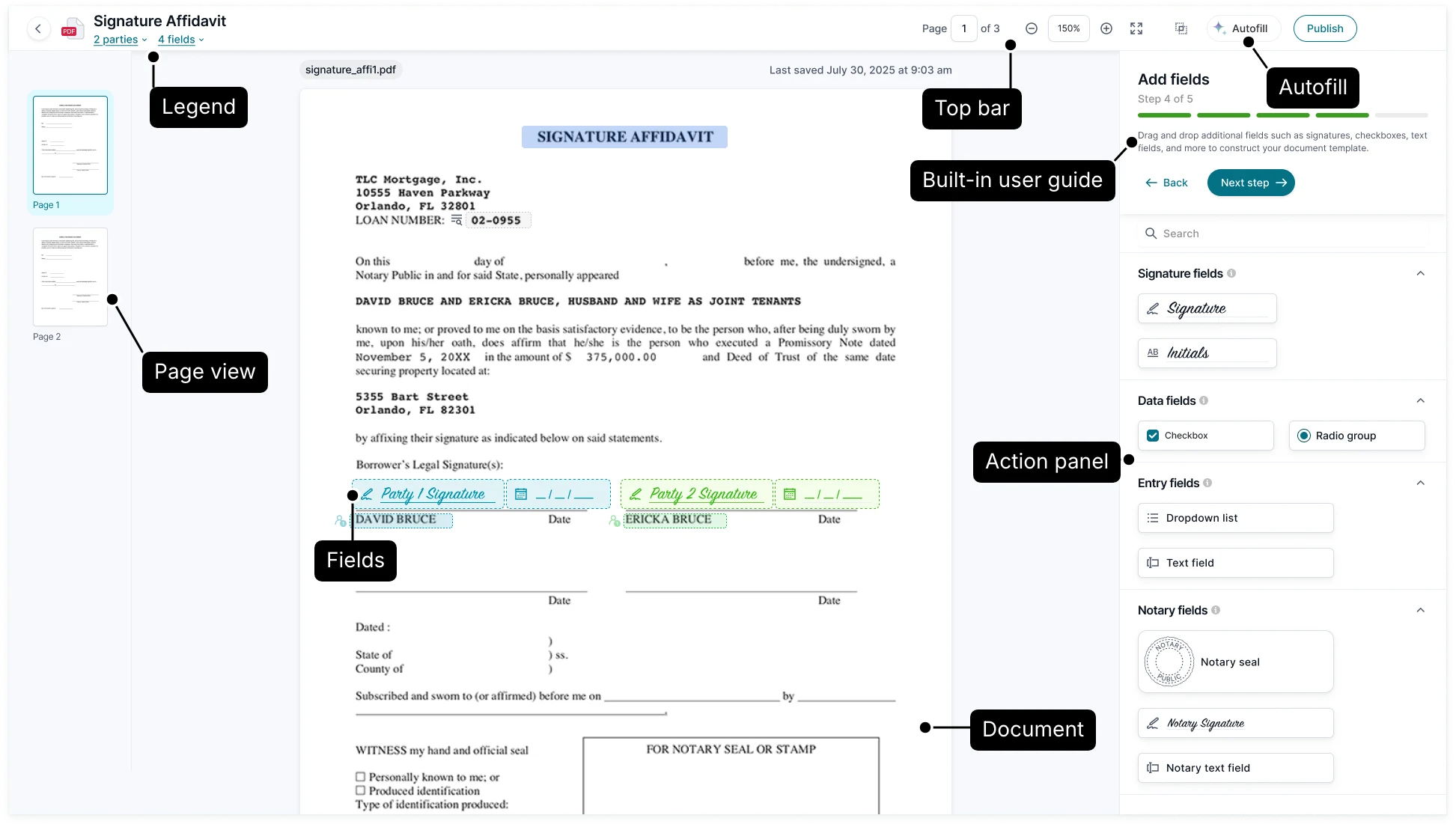
Every step of Template Manager shares one layout built from four primary elements: a top bar for template-level actions, a collapsible page view on the left, the document in the center where fields are placed, and an action panel on the right that explains the current step. Keeping that frame fixed means admins only have to learn the layout once, and each new step changes what's in the panels instead of where things are.
Starting a template
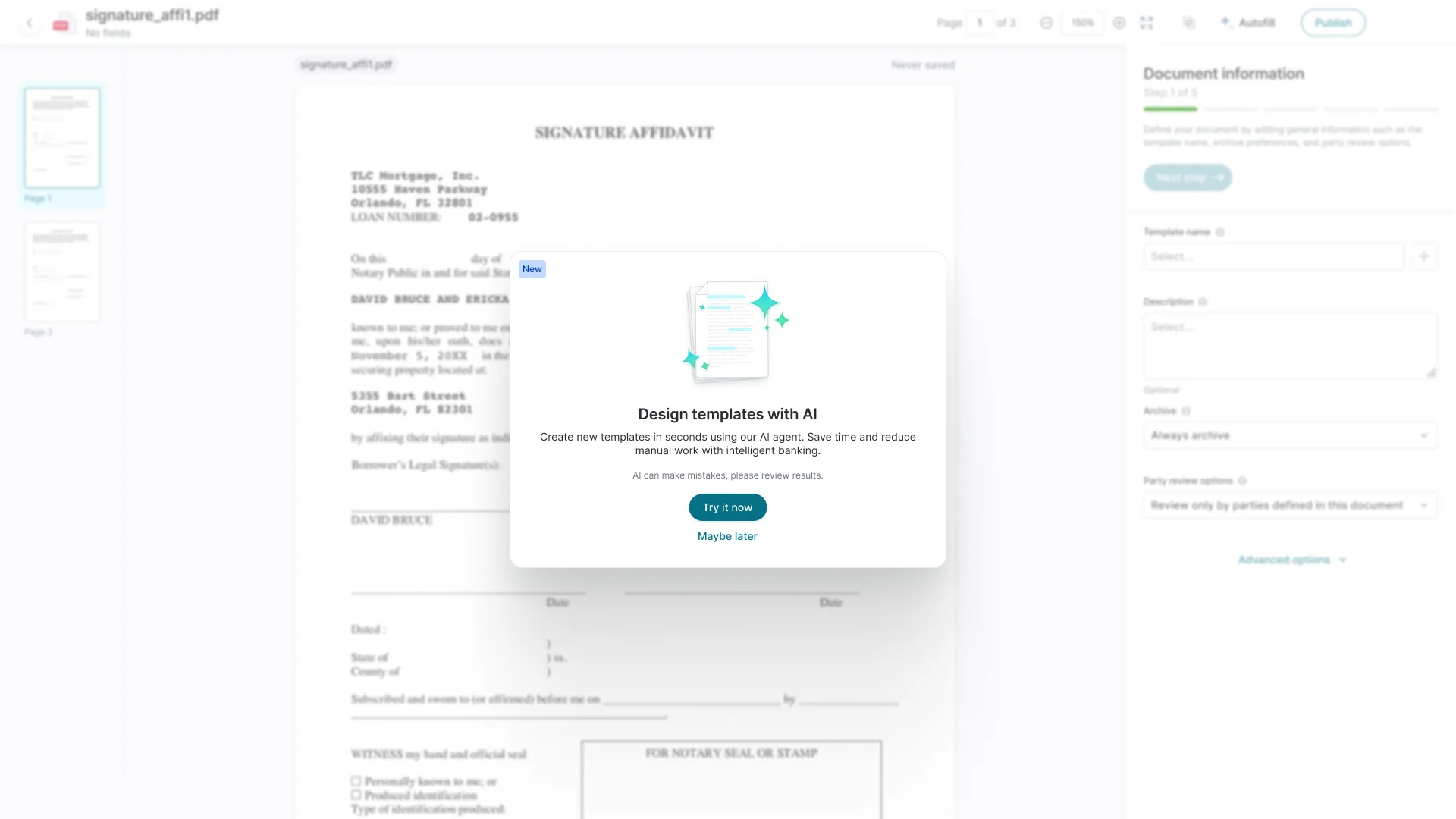
Admins upload a document and choose how to build it: manually, or with AI autofill. The option appears as soon as the document loads, so AI is offered at the moment it saves the most work.
AI flow
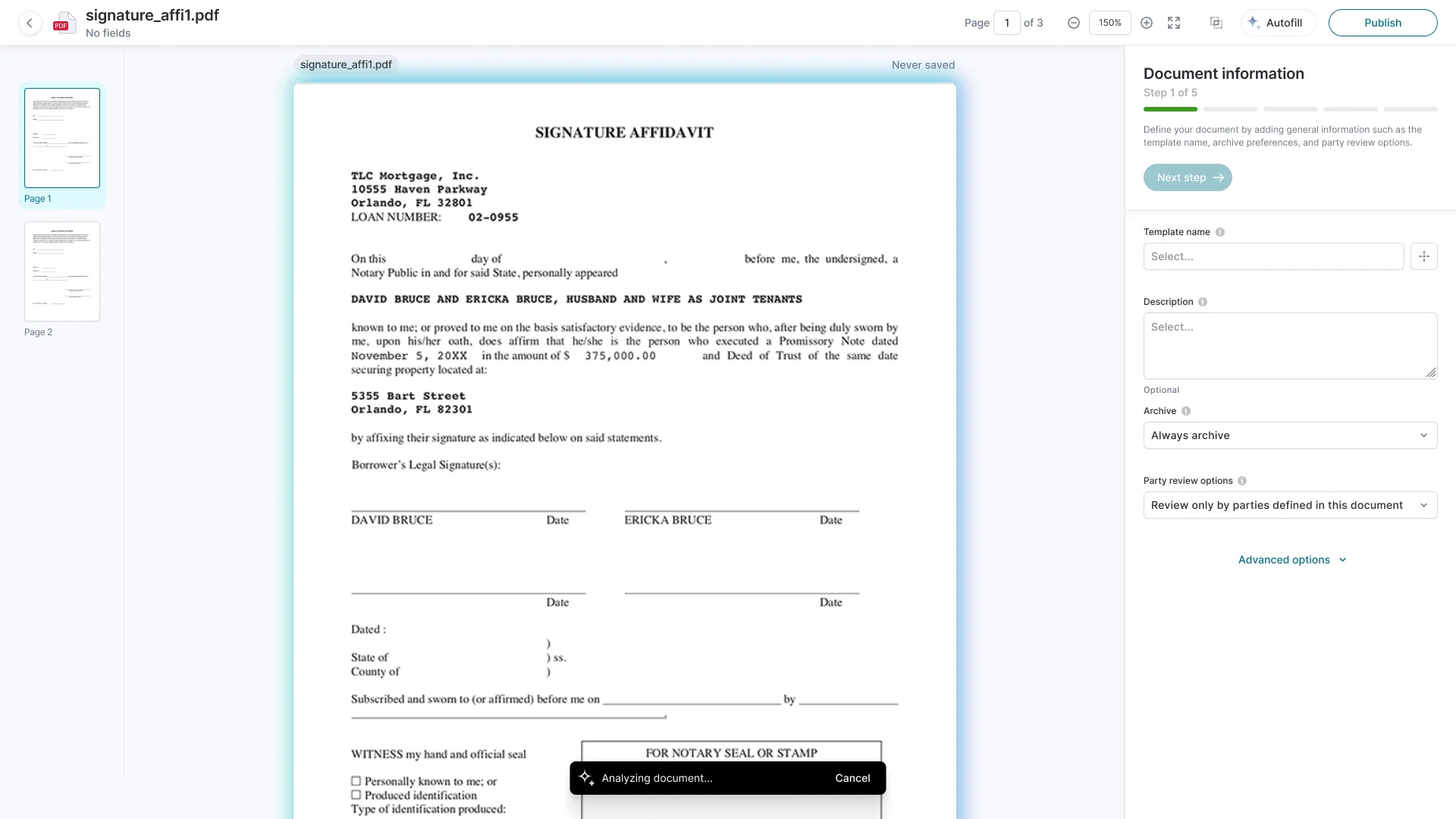
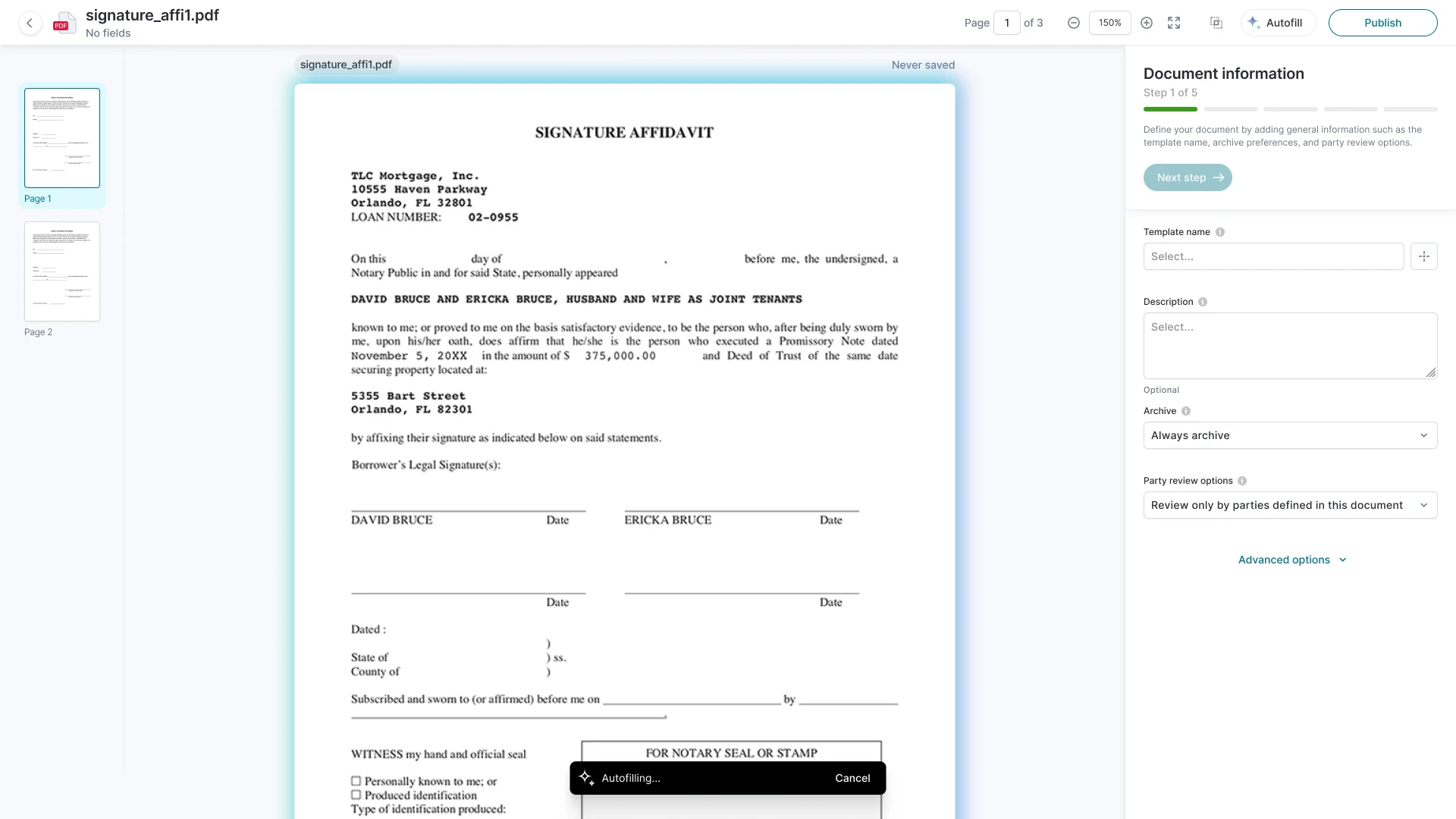
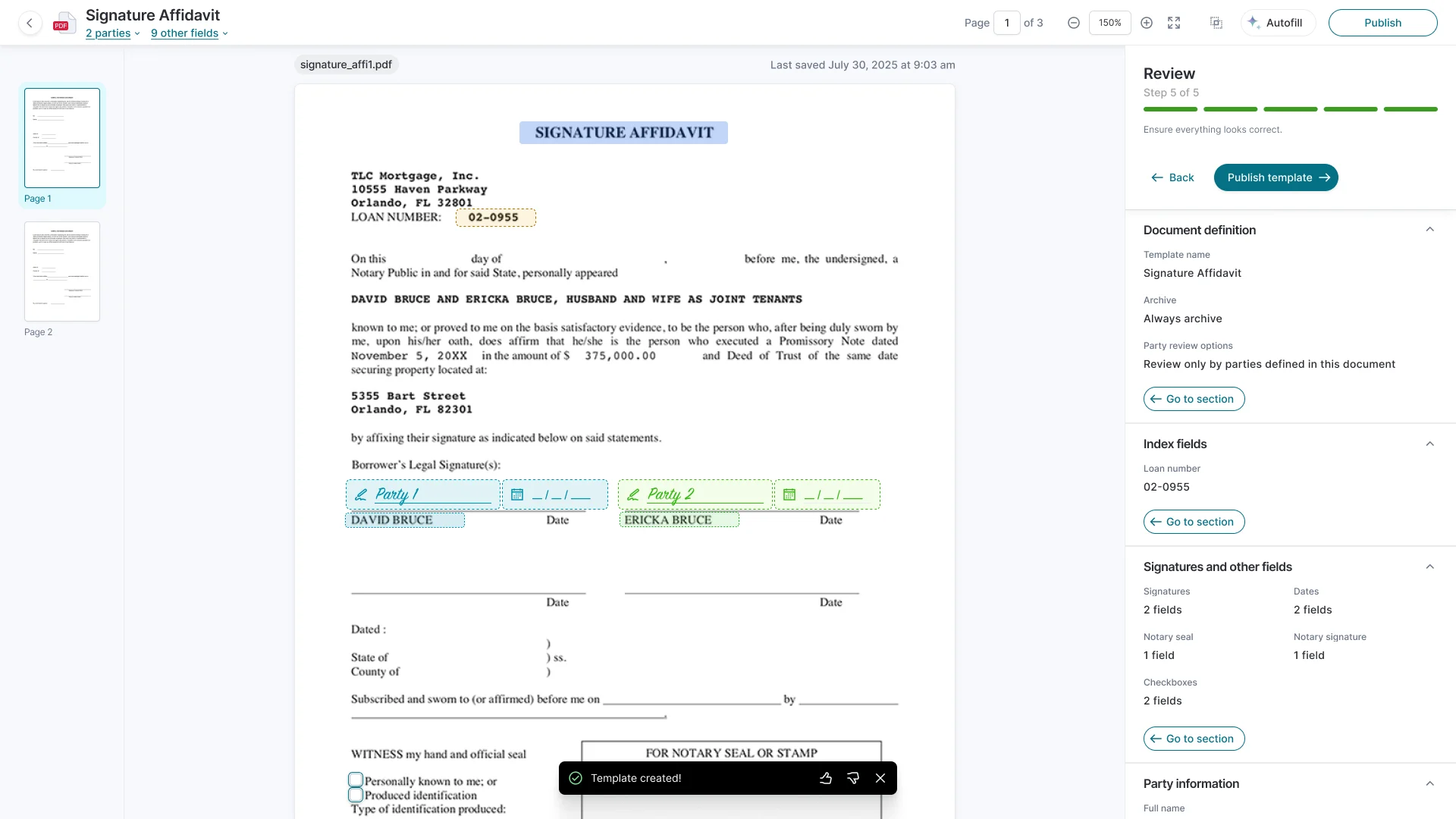
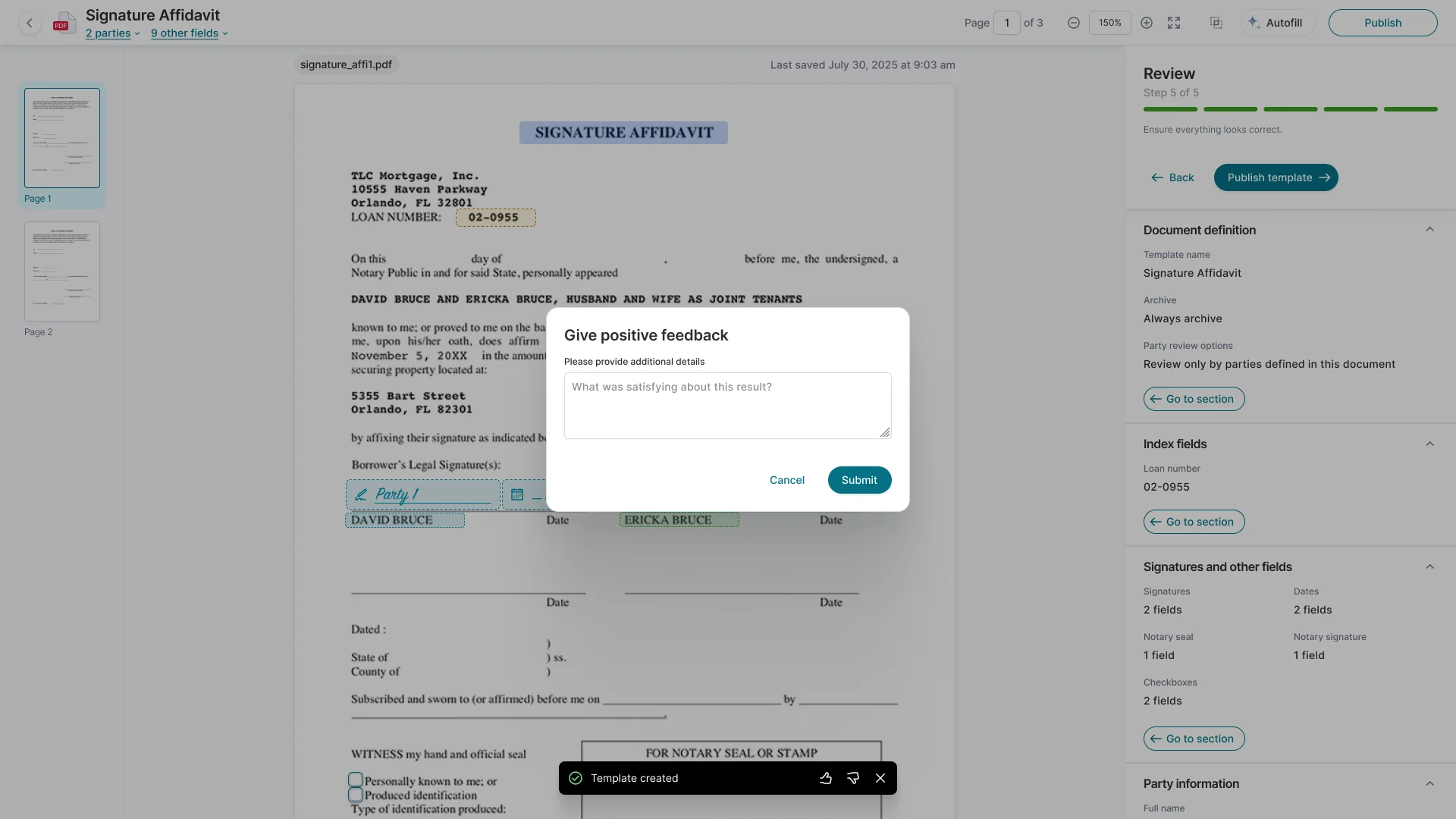
With AI autofill, the template arrives pre-filled from the uploaded PDF: index fields, party roles, signature locations, and other fields are detected and placed automatically. Admins move through the same steps, checking and correcting each one instead of building from scratch. When a template is created, admins can rate the result with a thumbs up or down and leave details, giving the team a direct signal on how well detection is working.
Five-step guided flow
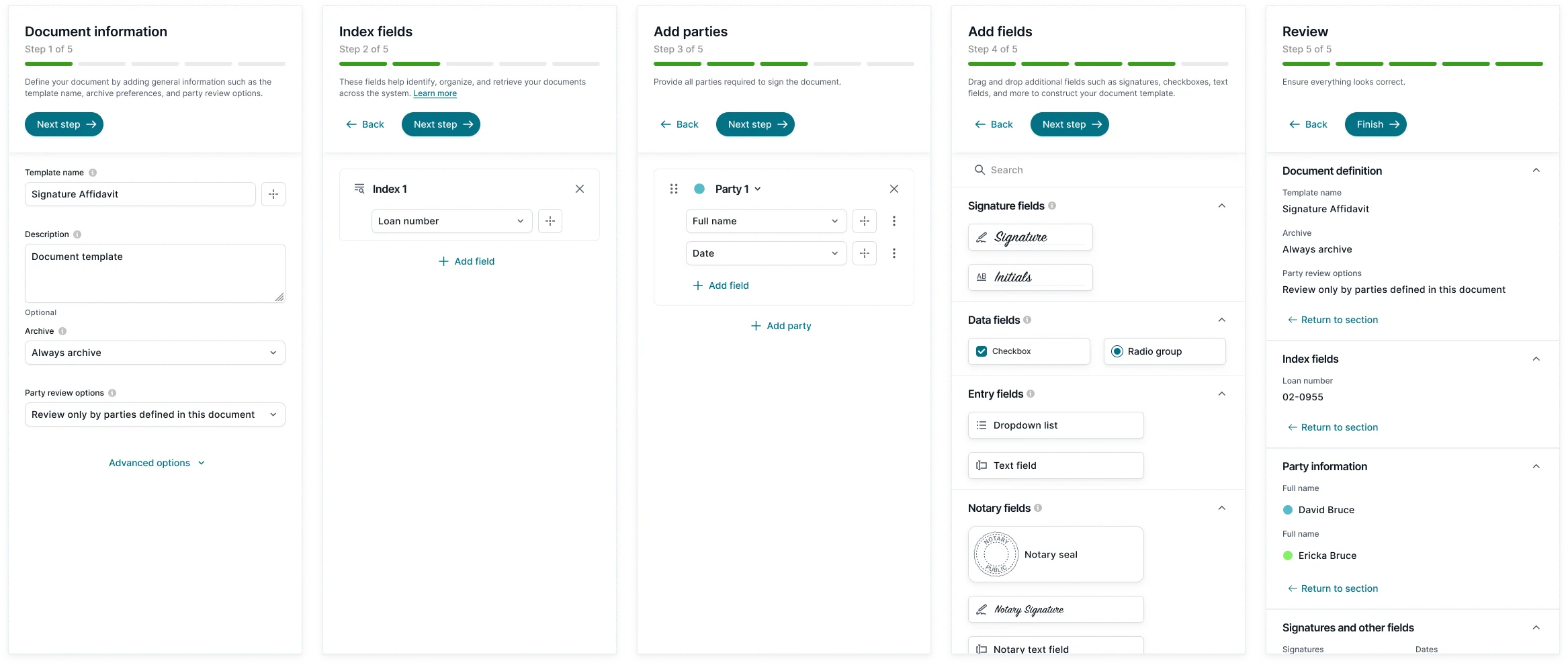
Each step has a clear title, a progress bar, and a short explanation of what to do and why. Admins move from document info and setup to index fields, parties, signatures and other fields, and finally review.
Drag and drop interface
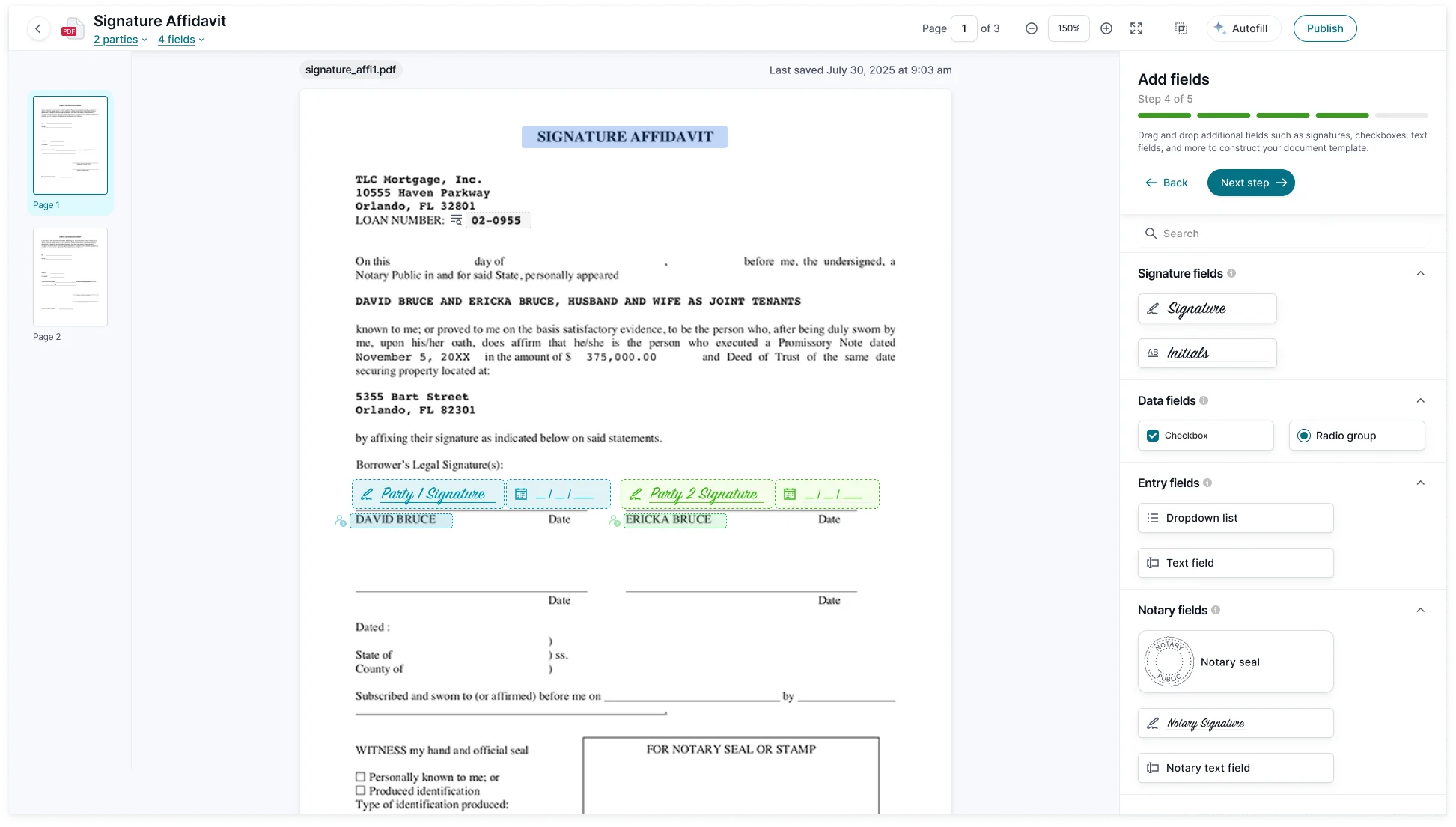
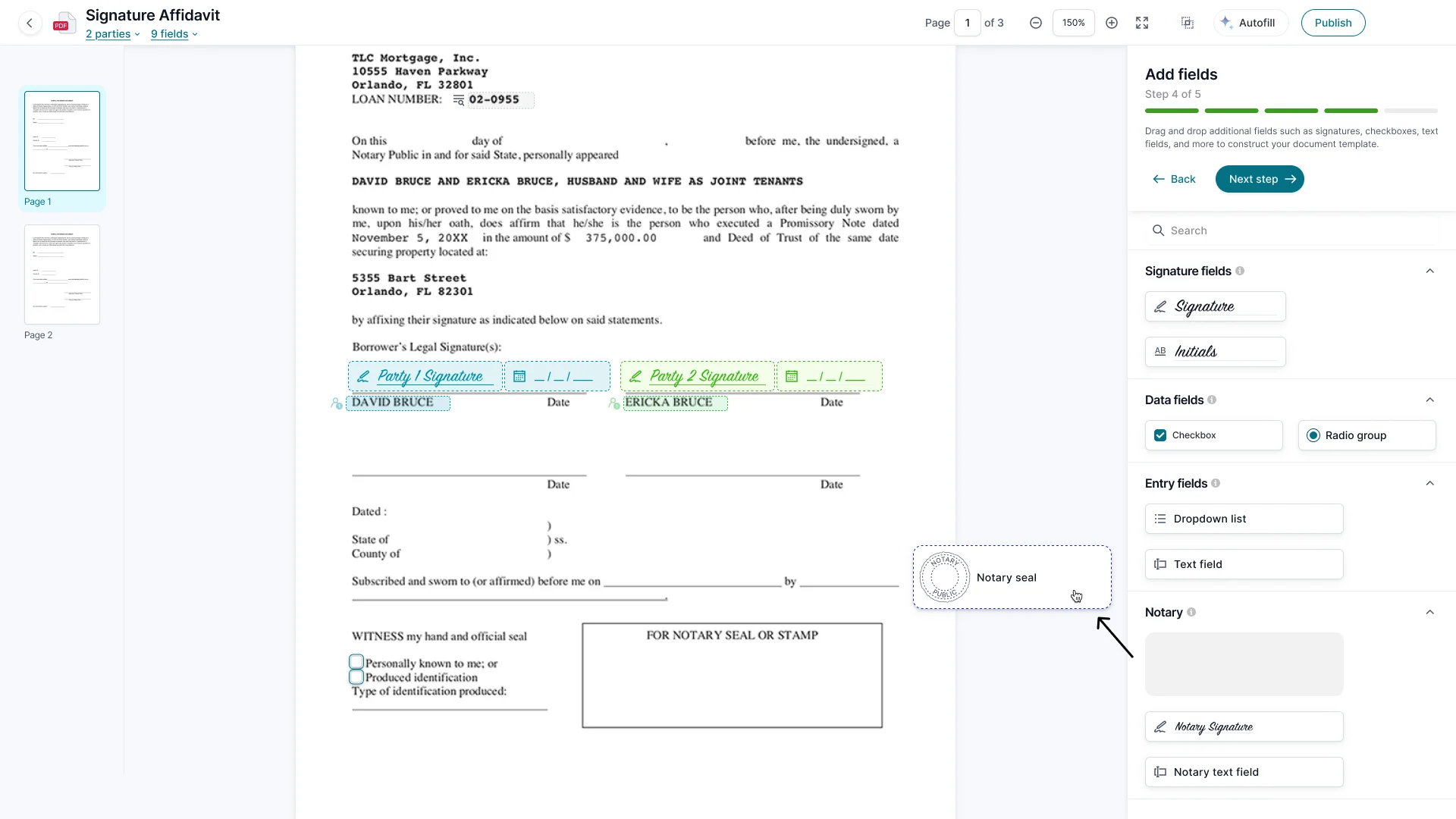
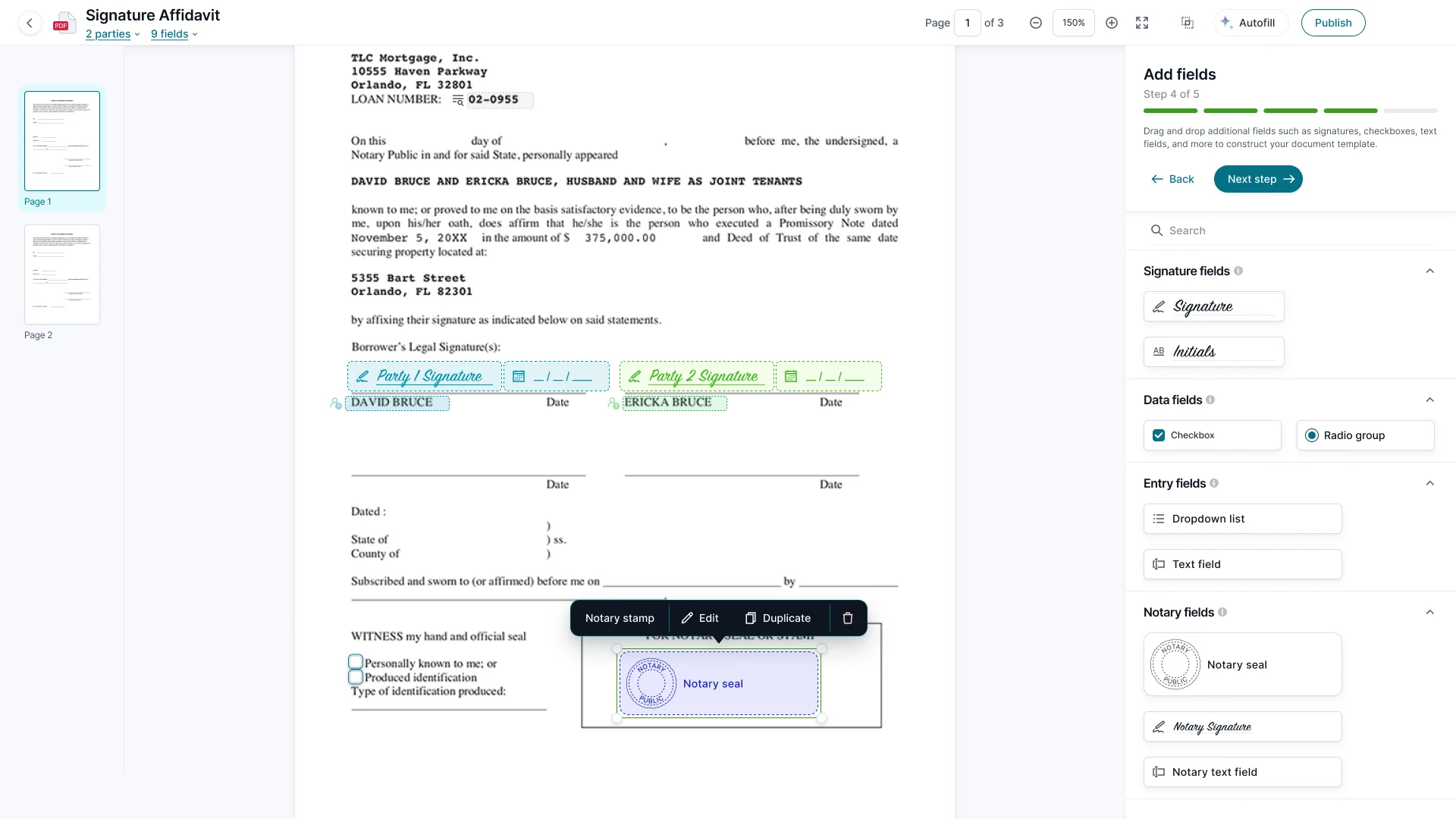
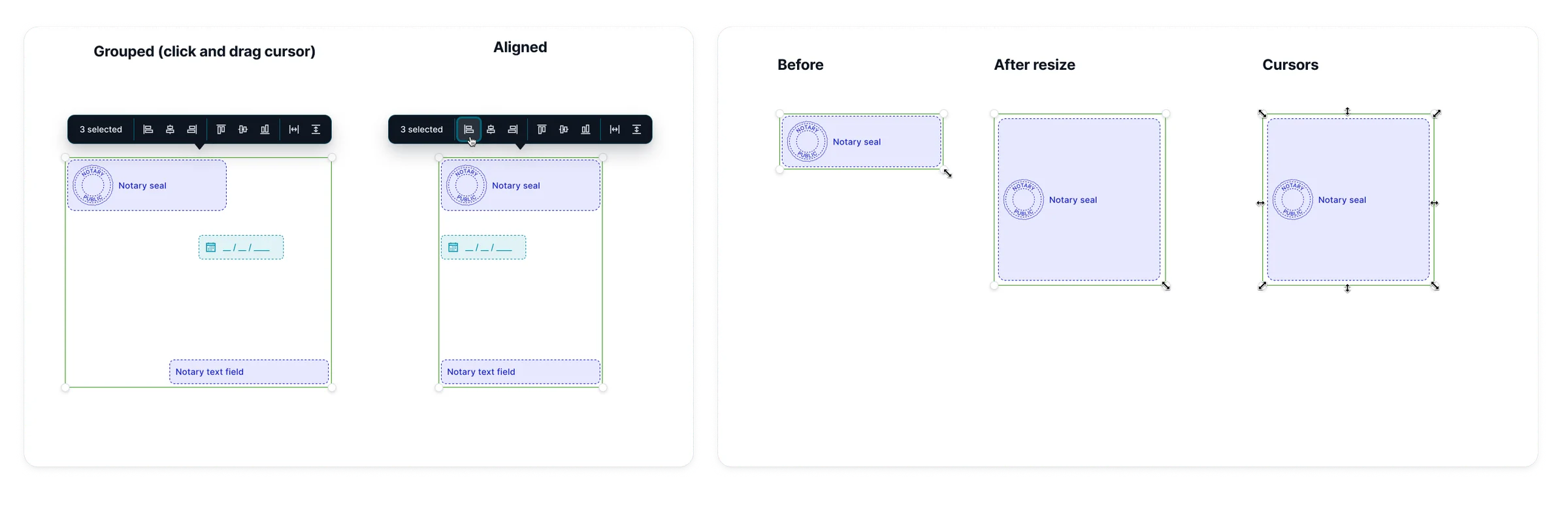
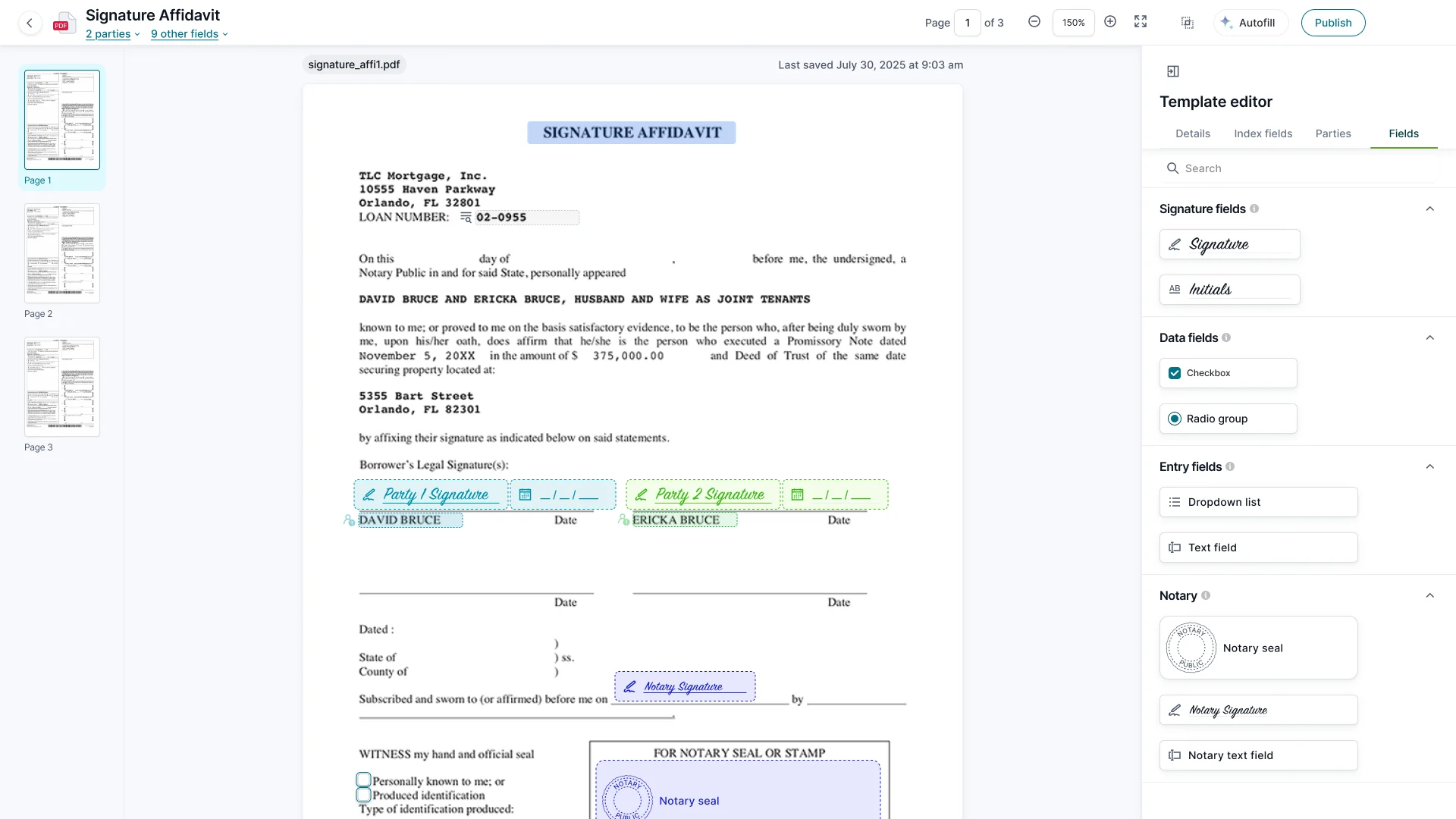
Admins drag and drop signatures, initials, checkboxes, radio groups, dropdowns, text fields, and notary fields onto the document to construct the template. Fields are color-coded by party, so it is clear at a glance who signs where. Admins can select several fields at once to align them, and resize fields like the notary seal to fit the document.
Review before publishing
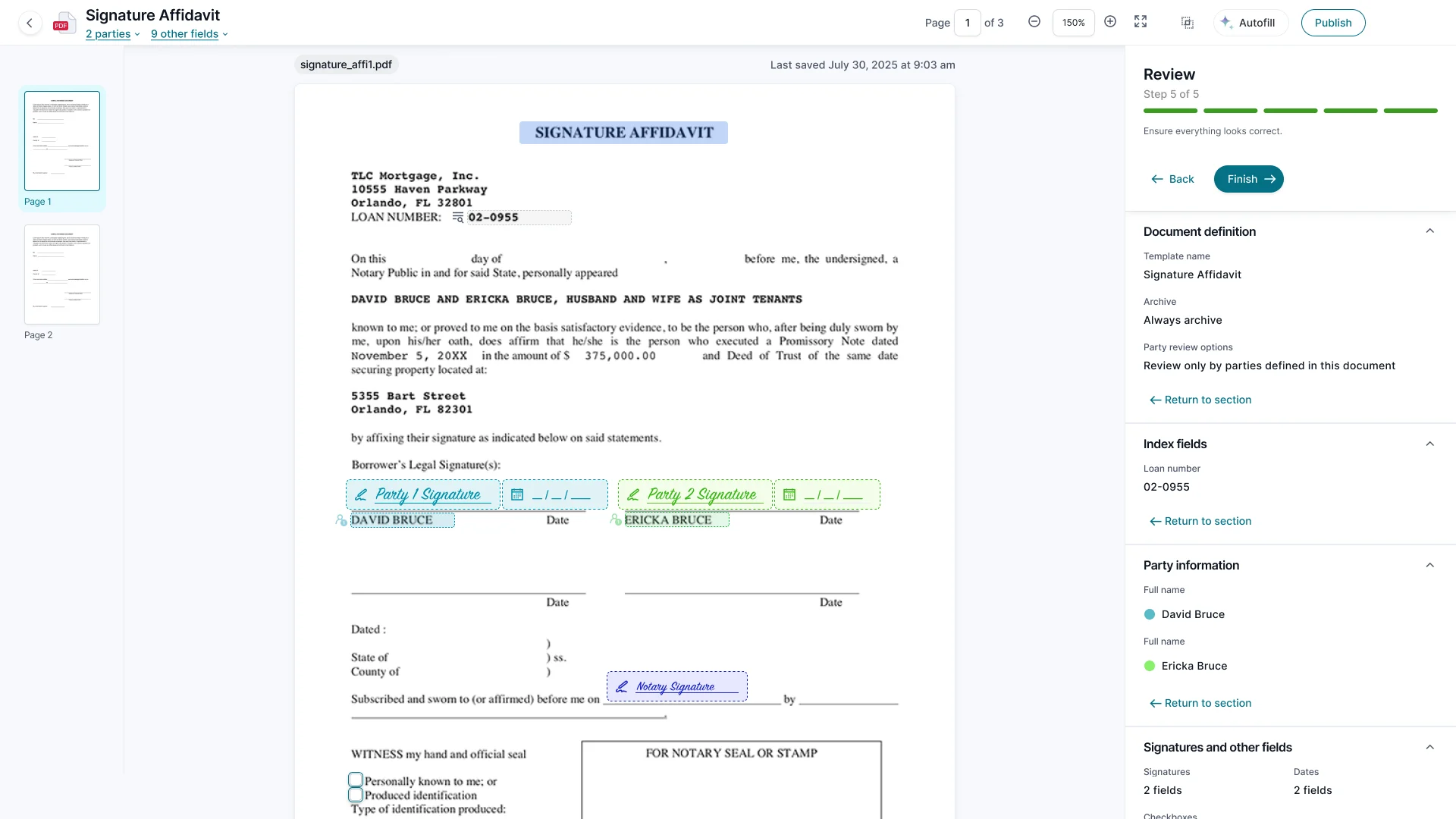
Every template, whether built manually or with AI, ends with a review step, so the admin confirms the result before it goes live. The review panel summarizes the document definition, index fields, party information, and signatures and other fields, with a link back to each section to fix anything that looks off.
Editing an existing template
Saved templates open in a tabbed layout with the same content, split into Details, Index fields, Parties, and Fields tabs, so admins can go straight to the section they need.
Challenges
- Keeping every legacy feature
- Every tool from the old toolbar needed a home in one of the five steps, including ones few admins used. That came with working inside a legacy system: removing a feature risked technical issues in other parts of the system, so the redesign kept them all and gave each one a place.
- Design alignment with an offshore team
- The offshore development team worked with ad-hoc AI, which led to some difficult design alignment. Built screens often drifted from the designs, so the written specs had to carry more of the weight.
- Design QA
- Design QA was a large portion of my time at the end, despite a very detailed handoff file and instructions. I reviewed builds step by step to catch mismatches in spacing, states, and components before launch.
- Finding usability test participants
- Templating is a common annual process but not a frequent one, so we had a very limited window to recruit participants for a pre-launch review. Without enough participants, I made the call to slow-roll the release to a small group of financial institutions instead of launching to everyone at once. That paid off: early users surfaced a bug where generated checkboxes were too small to work with easily, and we fixed it before the large-scale rollout.
Impact
Template Manager and Automated Document Setup launched together on Kinective Sign and SignPlus. Early results from the launch:
- Setup time: Up to 15 minutes per form by hand → seconds with AI autofill
- Creation and maintenance: More than 50% less time spent creating templates and on annual maintenance
- Accuracy: Fewer misaligned or missing fields than manual setup
Results as reported in Kinective's launch announcement.
Every hour they don’t spend building eSignature transactions is an hour available for work that can grow the institution and deepen consumer relationships.
CEO, Kinective
Tracking
Post-launch tracking and feedback
Pendo tracking is coming soon, so we can see how Template Manager is actually used now that it is live and keep improving it from real behavior, not assumptions.
- Usage analytics: The product design team monitors how admins move through the five steps, where they get stuck, and how often they choose AI autofill over building manually, and uses what it finds to decide what to improve next.
- AI feedback: Tracking how often admins correct AI-placed fields during review tells us whether admins trust autofill and where detection needs to improve. The snackbar that confirms an AI-created template also has a thumbs up and thumbs down built with Pendo, so admins can rate that specific result and add a written response.
- Give feedback button: A persistent "Give feedback" button is built into the UI with Pendo, so admins can share feedback from anywhere in Template Manager.
Reflection
This project was a big one, and it brought AI into a workflow admins rely on every day.
What worked
- Designing around the template lifecycle: Separating new templates from edits kept the guided flow useful without slowing down routine updates.
- Keeping people in control of AI: Making autofill optional and reviewable gave admins the speed without asking them to trust it blindly, which matters when a missing field can hold up a signed financial document.
What I'd do differently
- Surface technical dependencies earlier: Some dependencies came up late in the build. Earlier conversations with engineering would have given us more room to design around them.
- Check in with developers more often: Regular reviews during the build, especially with an offshore team working with AI, would have caught gaps sooner and cut down on QA at the end.
Start the conversation
If you're hiring for design leadership, I'd like to hear what you're building.